Python's turtle module lets you draw by moving a little "turtle" around the screen. It is one of the friendliest ways to learn Python: you write a line of code and immediately see what it does.
This cheat sheet groups every command you will actually use, with a short description, an example, and pictures of what the code draws. Every example runs as it is in the Python Turtle playground, right in your browser, with nothing to install.
Setting up
Every turtle program starts the same way: import the module, make a turtle, and keep the window open at the end.
import turtle

t = turtle.Turtle()      # your turtle (the pen)
screen = turtle.Screen() # the window it draws on

t.forward(100)

turtle.done() # keep the window openYou can also call the commands on the module directly, like turtle.forward(100), which moves a default turtle. Creating your own t = turtle.Turtle() is clearer, and you need it as soon as you want more than one turtle.
The screen works like a graph: (0, 0) is the centre, x grows to the right and y grows upwards. The turtle starts at the centre, facing right (east).
Moving
| Command | What it does | Example |
|---|---|---|
forward(distance) / fd() | Move forward, drawing a line | t.forward(100) |
backward(distance) / bk() | Move backward | t.backward(50) |
left(angle) / lt() | Turn left (anticlockwise), in degrees | t.left(90) |
right(angle) / rt() | Turn right (clockwise) | t.right(45) |
goto(x, y) | Move straight to a point | t.goto(100, -50) |
setx(x) / sety(y) | Change only x or only y | t.setx(0) |
setheading(angle) / seth() | Face a direction: 0 east, 90 north, 180 west, 270 south | t.setheading(90) |
home() | Go back to (0, 0), facing east | t.home() |
A square is four "forward, turn left 90" steps:
import turtle

t = turtle.Turtle()
t.pensize(3)
t.pencolor("royalblue")

for _ in range(4):
    t.forward(150)
    t.left(90)

turtle.done()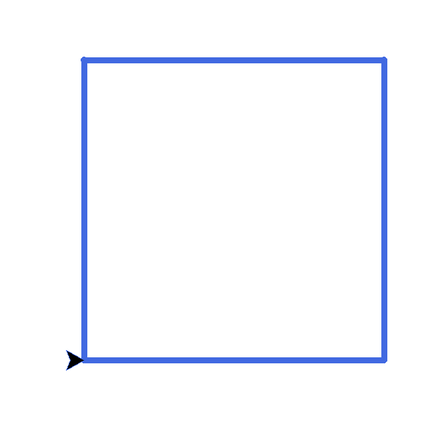
Where is the turtle?
| Command | What it gives you | Example |
|---|---|---|
position() / pos() | The current (x, y) | print(t.pos()) |
xcor() / ycor() | Just x or just y | if t.ycor() > 200: |
heading() | The direction it faces, in degrees | print(t.heading()) |
distance(x, y) | How far away a point is | t.distance(0, 0) |
towards(x, y) | The angle to face a point | t.setheading(t.towards(0, 0)) |
These are handy in games, for example to check whether the turtle has reached the edge of the screen.
The pen
The turtle draws with a pen. Lift it to move without drawing.
| Command | What it does | Example |
|---|---|---|
penup() / pu() / up() | Stop drawing | t.penup() |
pendown() / pd() / down() | Start drawing again | t.pendown() |
pensize(width) / width() | Line thickness in pixels | t.pensize(5) |
pencolor(color) | Line colour | t.pencolor("red") |
isdown() | True if the pen is down | print(t.isdown()) |
import turtle

t = turtle.Turtle()

# A dashed line: lift the pen for every gap
t.penup()
t.goto(-200, 60)
for _ in range(10):
    t.pendown()
    t.forward(20)
    t.penup()
    t.forward(20)

# Thicker and thicker lines in different colours
y = 0
for size, color in [(1, "black"), (4, "purple"), (8, "teal"), (14, "crimson")]:
    t.penup()
    t.goto(-200, y)
    t.pendown()
    t.pensize(size)
    t.pencolor(color)
    t.forward(400)
    y -= 40

t.hideturtle()
turtle.done()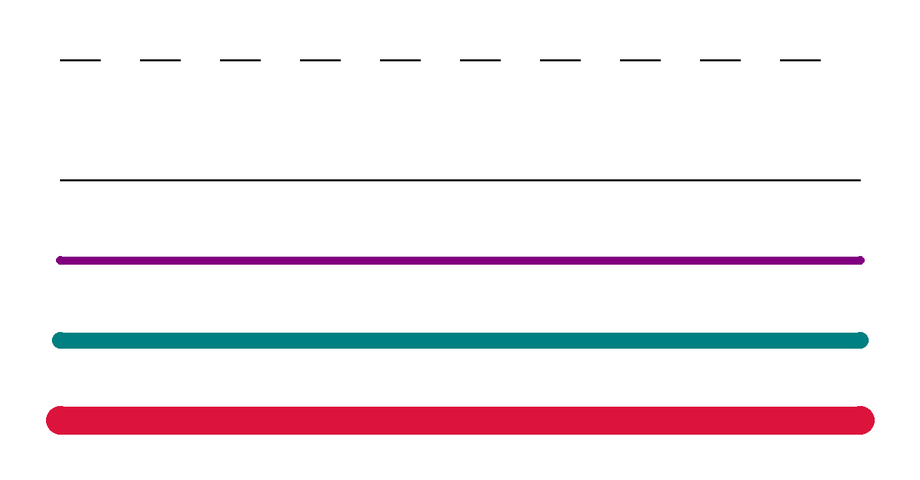
Tip: to start drawing somewhere else, always use penup(), goto(x, y), pendown(). Forgetting penup() leaves a line from where the turtle was.
Colours
| Command | What it does | Example |
|---|---|---|
pencolor(c) | Colour of the lines | t.pencolor("orange") |
fillcolor(c) | Colour used to fill shapes | t.fillcolor("gold") |
color(pen, fill) | Set both at once (one value sets both) | t.color("red", "pink") |
bgcolor(c) | Background colour of the window | turtle.bgcolor("black") |
colormode(255) | Use 0 to 255 for RGB numbers | turtle.colormode(255) |
A colour can be written three ways:
t.pencolor("tomato")          # a colour name
t.pencolor("#1e90ff")         # a hex code, like in CSS
turtle.colormode(255)
t.pencolor(255, 140, 0) # red, green, blue from 0 to 255Without colormode(255), RGB numbers go from 0 to 1, so t.pencolor(1, 0.5, 0) is orange. Popular colour names include red, orange, gold, yellow, green, lime, teal, cyan, blue, navy, purple, violet, pink, brown, black, white and gray.
Filling shapes
Put the drawing between begin_fill() and end_fill(), and the shape it makes is filled with the fill colour.
import turtle

t = turtle.Turtle()
t.color("darkorange", "gold")   # pen colour, fill colour
t.pensize(3)

t.begin_fill()
for _ in range(5):
    t.forward(200)
    t.right(144)
t.end_fill()

t.hideturtle()
turtle.done()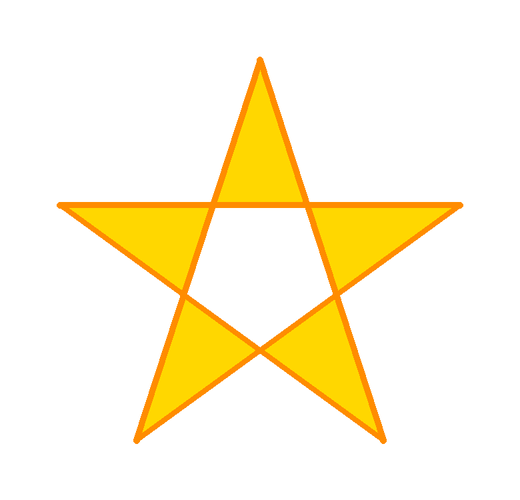
The angle trick: a shape closes when the turns add up to a multiple of 360. Five turns of 72 make a pentagon; five turns of 144 go round twice and make a star.
Circles, arcs and dots
| Command | What it does | Example |
|---|---|---|
circle(radius) | A full circle; the centre is radius to the turtle's left | t.circle(50) |
circle(radius, extent) | Part of a circle (an arc), in degrees | t.circle(50, 180) |
circle(radius, steps=n) | A shape with n sides that fits in the circle | t.circle(50, steps=6) |
dot(size, color) | A filled dot centred on the turtle | t.dot(20, "red") |
stamp() | Leave a copy of the turtle's shape on the screen | t.stamp() |
A negative radius draws the circle clockwise, to the turtle's right.
import turtle

t = turtle.Turtle()
t.pensize(3)

def jump(x, y):
    t.penup()
    t.goto(x, y)
    t.pendown()

jump(-240, 0)
t.circle(50)               # a full circle

jump(-90, 0)
t.circle(50, 180)          # half a circle (an arc)

jump(60, 0)
t.setheading(0)
t.circle(50, steps=6)      # a hexagon

jump(240, 50)
t.dot(80, "orange")        # a filled dot

t.hideturtle()
turtle.done()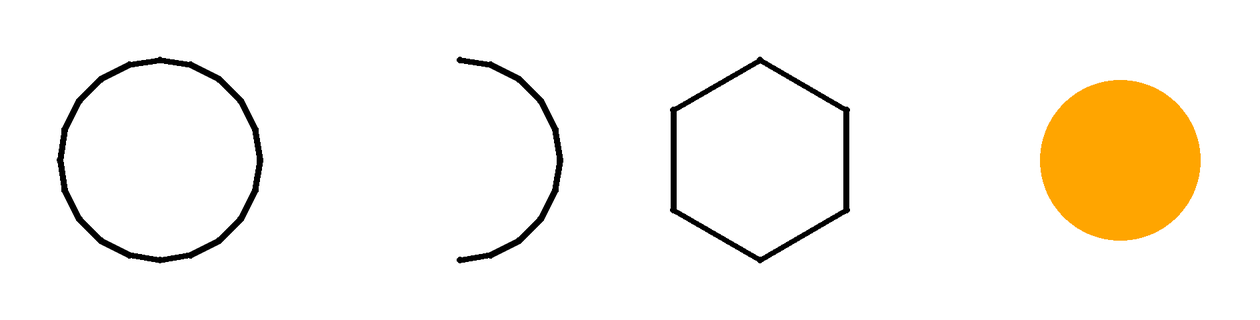
Writing text
write() puts text on the screen at the turtle's position.
| Argument | What it does | Example |
|---|---|---|
text | What to write | t.write("Hi") |
align | "left", "center" or "right" of the turtle | align="center" |
font | (name, size, style); style is "normal", "bold" or "italic" | font=("Arial", 24, "bold") |
import turtle

t = turtle.Turtle()
t.hideturtle()
t.penup()

t.goto(0, 60)
t.write("Hello, turtle!", align="center", font=("Arial", 28, "bold"))

t.goto(0, 0)
t.color("royalblue")
t.write("align='center'", align="center", font=("Courier", 16, "normal"))

t.goto(0, -50)
t.color("crimson")
t.write("Made with Python", align="center", font=("Arial", 20, "italic"))

turtle.done()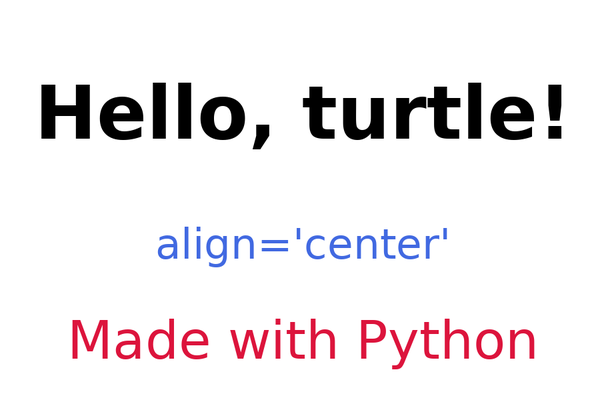
The turtle's look and speed
| Command | What it does | Example |
|---|---|---|
shape(name) | "classic", "arrow", "turtle", "circle", "square" or "triangle" | t.shape("turtle") |
shapesize(w, h) | Make the turtle itself bigger | t.shapesize(2, 2) |
speed(n) | 1 is slowest, 10 is fast, 0 is fastest (no animation) | t.speed(0) |
hideturtle() / ht() | Hide the turtle (it keeps drawing) | t.hideturtle() |
showturtle() / st() | Show it again | t.showturtle() |
Tip: speed(0) together with hideturtle() makes big drawings finish much faster.
Patterns with loops
Loops are where turtle gets fun. A tiny change to the angle or the distance gives a completely different picture.
import turtle

turtle.bgcolor("black")
t = turtle.Turtle()
t.speed(0)
t.pensize(2)
colors = ["red", "orange", "yellow", "green", "cyan", "violet"]

for i in range(120):
    t.pencolor(colors[i % 6])
    t.forward(i * 3)
    t.left(59)

t.hideturtle()
turtle.done()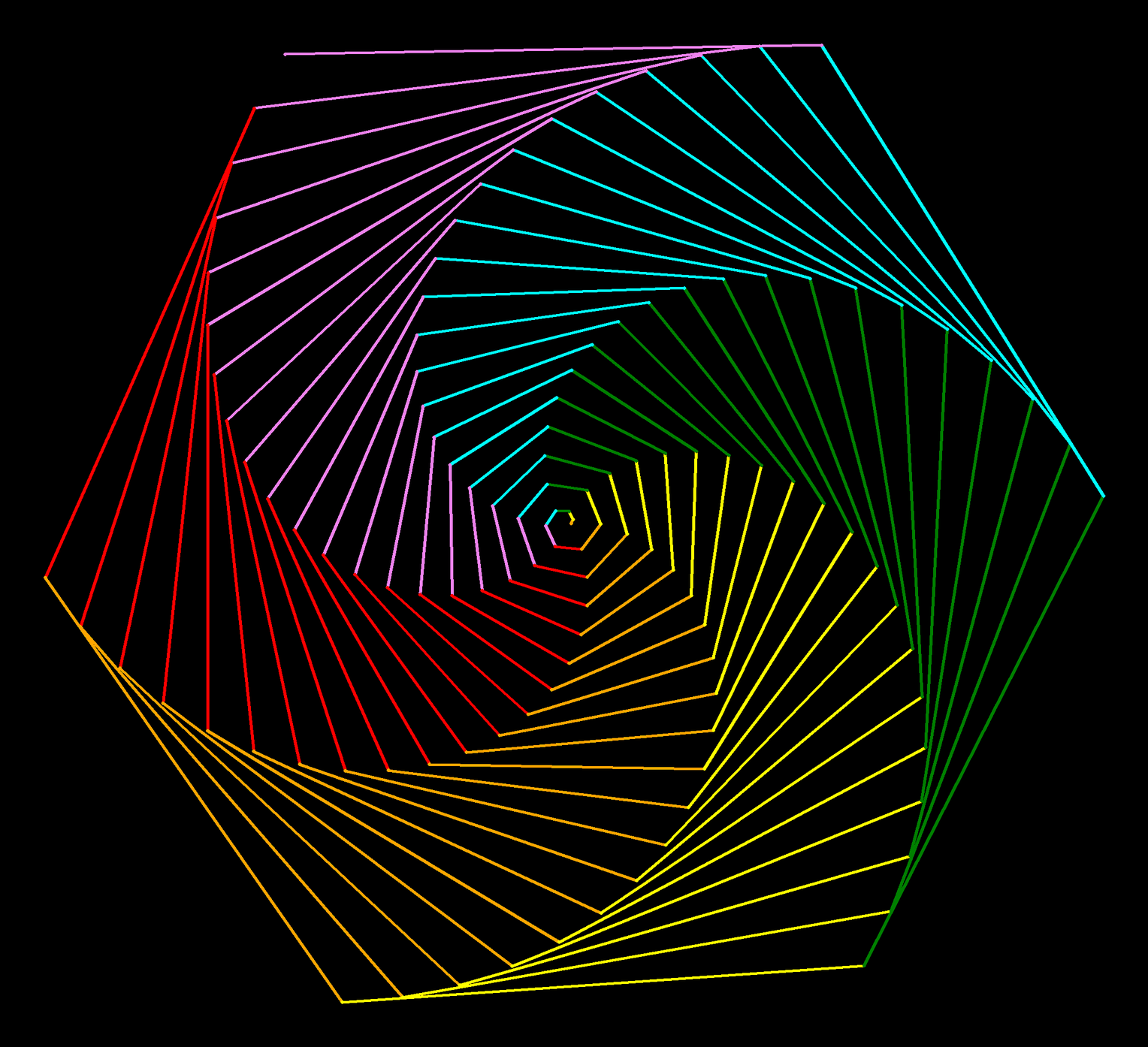
A shape function makes any regular polygon. The outside angle of a shape with n sides is 360 / n:
import turtle

t = turtle.Turtle()
t.pensize(3)

def polygon(sides, length, color):
    t.pencolor(color)
    for _ in range(sides):
        t.forward(length)
        t.left(360 / sides)

x = -280
for sides, color in [(3, "red"), (4, "orange"), (5, "green"), (6, "blue")]:
    t.penup()
    t.goto(x, 0)
    t.pendown()
    polygon(sides, 70, color)
    x += 150

t.hideturtle()
turtle.done()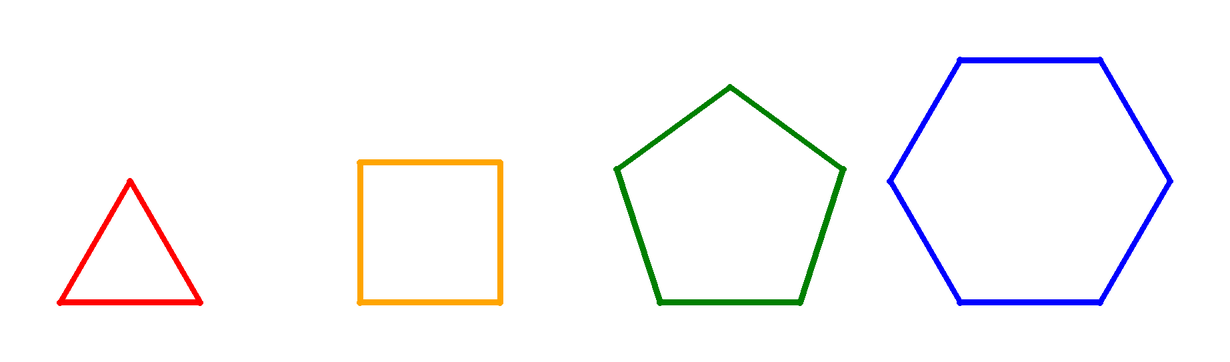
And circles turned a little each time make a flower:
import turtle

t = turtle.Turtle()
t.speed(0)
t.pensize(2)
colors = ["red", "orange", "gold", "green", "blue", "purple"]

for i in range(36):
    t.pencolor(colors[i % 6])
    t.circle(80)
    t.left(10)

t.hideturtle()
turtle.done()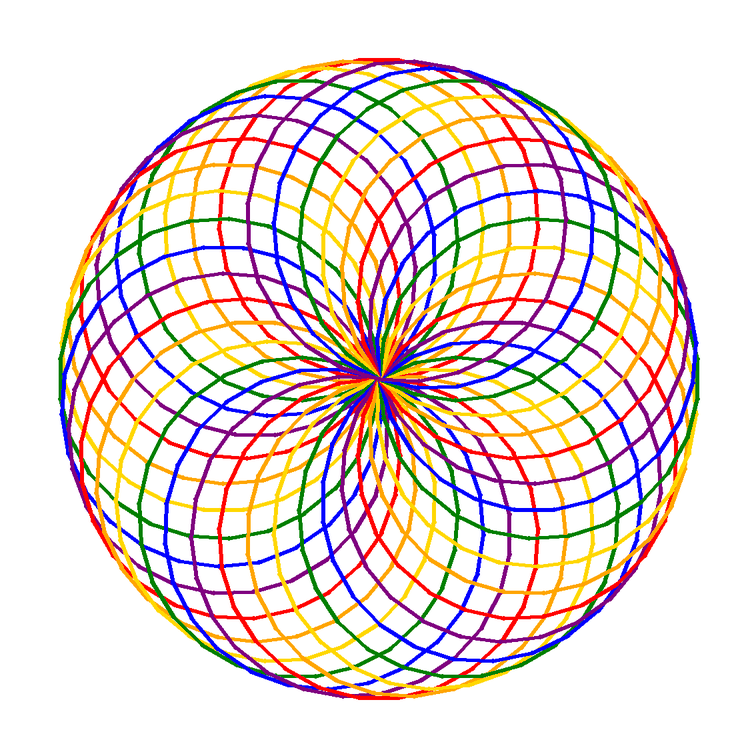
Several turtles
Each turtle.Turtle() is a separate turtle with its own position, colour and pen, all drawing on the same screen.
import turtle

red = turtle.Turtle()
red.shape("turtle")
red.color("red")
red.penup()
red.goto(-200, 40)
red.pendown()

blue = turtle.Turtle()
blue.shape("turtle")
blue.color("blue")
blue.penup()
blue.goto(-200, -40)
blue.pendown()

red.forward(300)
blue.forward(220)

turtle.done()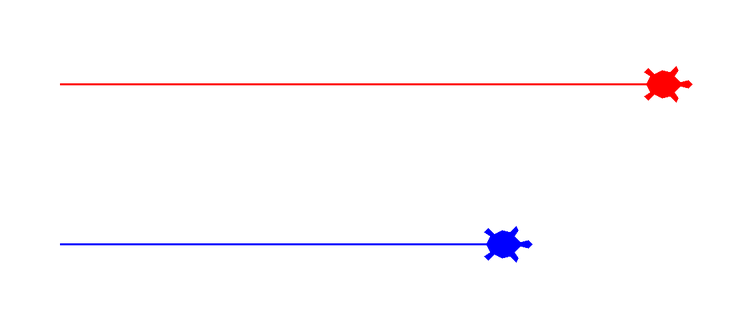
Use random.randint(1, 10) for each step and you have a turtle race game.
The screen
| Command | What it does | Example |
|---|---|---|
turtle.Screen() | Get the window, to call screen commands on | screen = turtle.Screen() |
bgcolor(c) | Background colour | screen.bgcolor("navy") |
title(text) | Text in the window's title bar | screen.title("My drawing") |
setup(width, height) | Window size in pixels | screen.setup(800, 600) |
tracer(0) and update() | Turn animation off, then show everything at once | screen.tracer(0) |
Keyboard and mouse
Turtle can react to keys and clicks, which is enough for simple games.
| Command | What it does | Example |
|---|---|---|
listen() | Start listening for key presses | screen.listen() |
onkey(func, key) | Call a function when a key is released | screen.onkey(jump, "space") |
onkeypress(func, key) | Call it when the key is pressed (repeats if held) | screen.onkeypress(go_up, "Up") |
onclick(func) | Call func(x, y) when the turtle is clicked | t.onclick(hit) |
onscreenclick(func) | Call func(x, y) for a click anywhere | screen.onscreenclick(t.goto) |
import turtle

screen = turtle.Screen()
t = turtle.Turtle()
t.shape("turtle")

def up():
    t.setheading(90)
    t.forward(20)

def down():
    t.setheading(270)
    t.forward(20)

def left():
    t.setheading(180)
    t.forward(20)

def right():
    t.setheading(0)
    t.forward(20)

screen.onkeypress(up, "Up")
screen.onkeypress(down, "Down")
screen.onkeypress(left, "Left")
screen.onkeypress(right, "Right")
screen.onscreenclick(t.goto)   # click to move there
screen.listen()

turtle.done()Key names include "Up", "Down", "Left", "Right", "space", "Return" and single letters like "a".
Animation and timers
ontimer(func, ms) calls a function after a delay in milliseconds. Calling it again at the end of that function makes a loop that keeps the window responsive, which is how turtle games move things smoothly:
import turtle

screen = turtle.Screen()
screen.tracer(0)              # draw only when we say so
ball = turtle.Turtle()
ball.shape("circle")
ball.penup()
dx = 4

def tick():
    global dx
    ball.setx(ball.xcor() + dx)
    if abs(ball.xcor()) > 250:
        dx = -dx              # bounce off the sides
    screen.update()           # show the new frame
    screen.ontimer(tick, 20)  # run again in 20 ms

tick()
turtle.done()Clearing and undoing
| Command | What it does |
|---|---|
clear() | Erase this turtle's drawings; the turtle stays where it is |
reset() | Erase the drawings and send the turtle home with default settings |
undo() | Undo the turtle's last action |
turtle.clearscreen() | Wipe the whole screen and all turtles |
Finishing your program
| Command | What it does |
|---|---|
turtle.done() | Keep the window open until it is closed (same as mainloop()) |
screen.exitonclick() | Close the window when it is clicked |
turtle.bye() | Close the window from your code |
Put turtle.done() as the last line. Without it, the window can close the moment the drawing finishes.
Common mistakes
- The window closes straight away. Add
turtle.done()at the end. - A line appears where you did not want one. Lift the pen:
penup(), thengoto(), thenpendown(). - `AttributeError: module 'turtle' has no attribute 'Turtle'`. Your file is called
turtle.py, so Python imports your file instead of the real module. Rename it, for example todrawing.py. - The drawing takes forever. Use
t.speed(0)andt.hideturtle(), orscreen.tracer(0)withscreen.update()at the end. - The shape is not filled.
begin_fill()must come before the shape andend_fill()after it, and the shape should end where it started. - Keys do nothing. Call
screen.listen(), and click the turtle window once so it has focus.
Quick reference
| Category | Most used commands |
|---|---|
| Setup | import turtle, t = turtle.Turtle(), turtle.Screen(), turtle.done() |
| Moving | forward, backward, left, right, goto, setheading, home |
| Pen | penup, pendown, pensize, pencolor |
| Colour and fill | color, fillcolor, begin_fill, end_fill, bgcolor, colormode |
| Shapes | circle, dot, stamp, write |
| Look and speed | shape, shapesize, speed, hideturtle, showturtle |
| Position | pos, xcor, ycor, heading, distance, towards |
| Events | listen, onkey, onkeypress, onclick, onscreenclick, ontimer |
| Cleaning up | clear, reset, undo, clearscreen |
Try it now
Open the free Python Turtle playground, paste any example from this page and press Run. The drawing appears right next to your code, with nothing to install. For bigger ideas, see the turtle projects on the Python projects page, like the flower, the Christmas tree and writing a name in the stars.